Compatability
Find details on supported systems, plugin formats, DAW compatibility, and basic requirements.
Manual
View setup instructions, feature guides, workflow tips, and help for using the plugin.
Contact Us
Reach out with support questions, technical issues, account help, installation problems, or general inquiries.
Compatability
System Requirements
Oriental Drummer is available for macOS and Windows and works inside major DAWs that support VST3 or AU plugin formats, including Logic Pro, Ableton Live, FL Studio, Cubase, Studio One, Reaper, and more.
Plugin Formats
VST3
AU
macOS
macOS 10.15 or later
Intel or Apple Silicon processor
4 GB RAM minimum
Additional Requirements
Internet connection required for download and activation
200 MB disk space for installation and included content
Windows
Windows 10 or later
64-bit processor
4 GB RAM minimum
License Activation
You can activate your Oriental Drummer license on up to 3 computers at once. To move your license to a new device, deactivate it on one computer and activate it on another.
Oriental Drummer Manual
Player View
Styles Section
Patterns Section
Transport Section
Transport Button
Tempo Button
Play Button
MIDI Visualizer
Player Overview
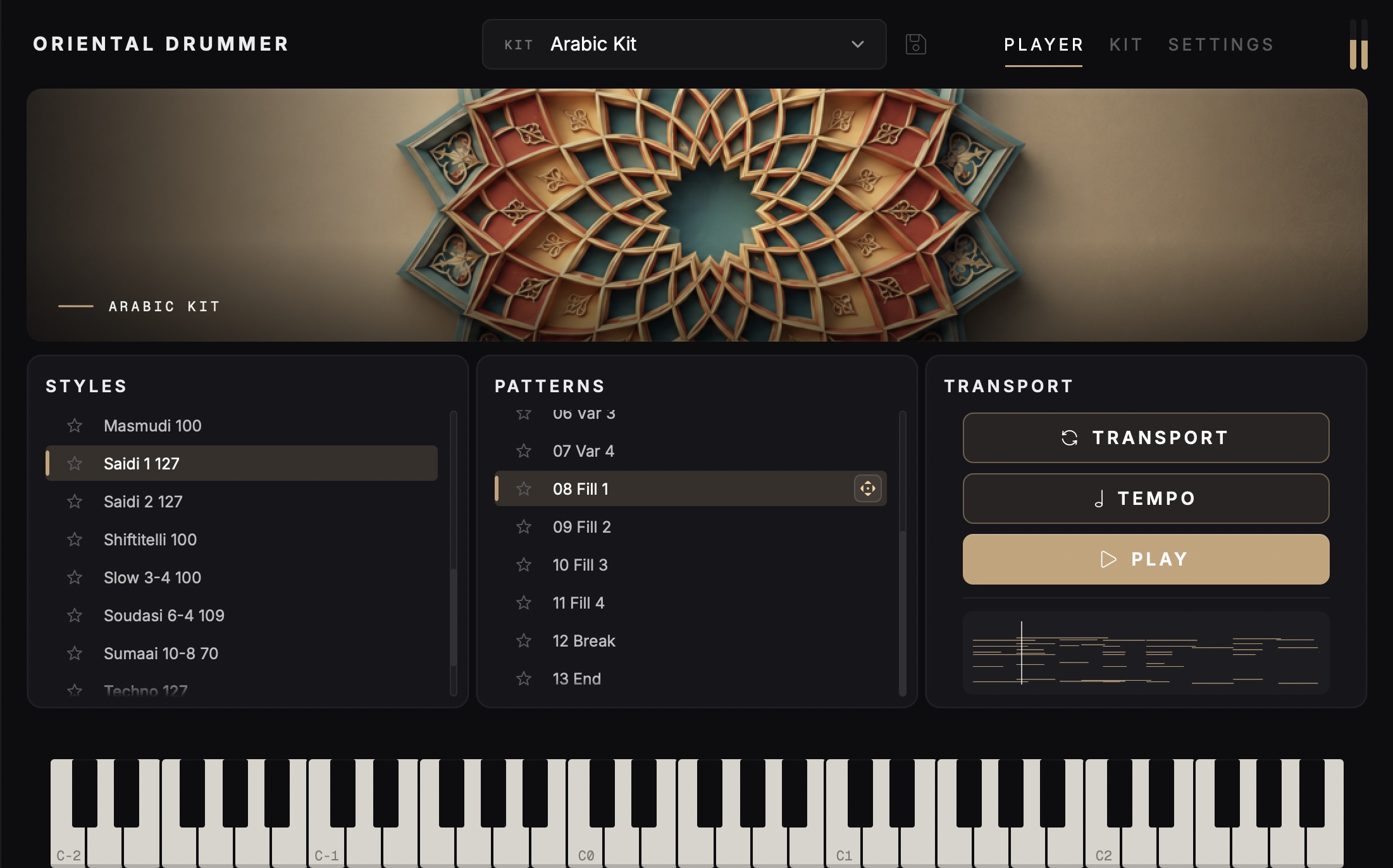
The Player View makes it easy to browse, audition, and build full rhythm arrangements fast. Preview 150+ styles and 2,000+ MIDI patterns across Oriental Drummer’s cultural libraries, with playback locked to your host tempo or heard at the original recorded feel.
Once you find the right intro, variation, fill, break, or ending, simply drag and drop the MIDI straight into your project for instant arrangement building with total flexibility.
Styles Section
The Styles section displays the rhythmic styles available for the selected kit. Each kit includes its own unique collection of styles, giving you access to different grooves, feels, and regional rhythm patterns depending on the kit you are using.
Each style name is listed with its original tempo shown next to it, making it easy to see the intended BPM before loading the pattern. Click on a style name to open the patterns included within that style.
Inside each style, you will find the available pattern variations, such as intros, main grooves, fills, breaks, and endings. These patterns can be used to build complete drum arrangements directly inside your DAW.
Patterns Section
The Patterns section displays all of the available patterns within the selected style. Each style includes 13 patterns: 3 intros, 4 variations, 4 fills, 1 break, and 1 ending. These patterns are designed to help you quickly build a complete drum arrangement with natural movement and variation.
To keep track of patterns you like, click the star icon to the left of any pattern name. This lets you quickly mark your favorite patterns so you can find them again while browsing or building a track.
When you find a pattern you want to use in your production, click and drag from the arrow icon on the right side of the pattern directly into your DAW. This allows you to quickly place the MIDI pattern into your session and continue editing or arranging it as needed.
Transport Section
The Transport section controls how patterns are played back inside the plugin and how they sync with your DAW.
The Transport button syncs pattern playback with your DAW. When enabled, pressing play in your DAW will also start playback of the selected pattern inside the plugin. This is useful when you want to audition a rhythm in time with your project.
The Tempo button syncs the MIDI pattern tempo to your DAW’s current tempo. When Tempo is enabled, the selected pattern will follow the tempo of your session. When Tempo is not enabled, the pattern will play at its original tempo, which is shown next to the style name.
The Play button lets you audition the selected pattern directly inside the plugin without starting playback from your DAW.
The bar at the bottom visually represents the MIDI pattern. While a pattern is playing, you can move the playhead within this bar to jump to different parts of the pattern and audition specific sections.
Kit View
Sample Section
Group Section
Master
Group Assignment
Sample Solo, Mute, and Lock
Group Parametric EQ
Group Output
Group Solo, Mute, Gate and Choke
Sample Volume, Pan, and Tune
Attack, Decay, and Level
Reverb Send
Master Reverb
Kit Overview
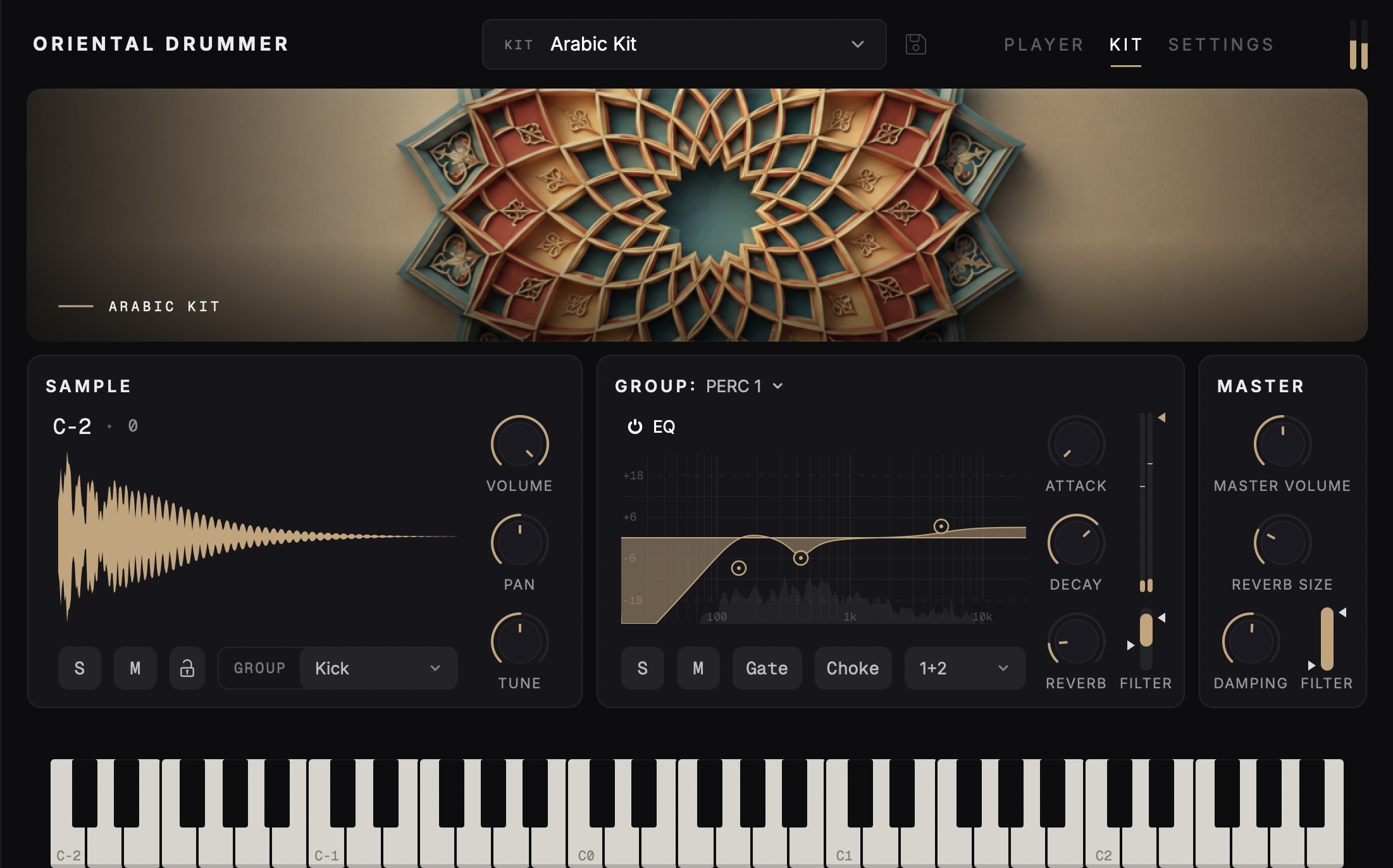
The Kit View gives you detailed control over the sound and mix of Oriental Drummer. Edit each sample individually with quick access to volume, pan, and tuning, then shape your kit further using up to 16 configurable groups.
Each group includes full parametric EQ, reverb settings, and flexible routing, allowing you to send different kit pieces or sections to up to 16 separate outputs in your DAW for complete mixing control.
Sample Section
The Sample section displays the currently selected sample and provides controls for editing its basic sound settings. A visual waveform is shown for the selected sample, making it easy to see the shape of the sound while you adjust it.
Use the Volume, Pan, and Tune knobs to shape the selected sample. Volume controls the level of the sample, Pan places it left or right in the stereo field, and Tune adjusts the pitch of the sound.
The Solo button lets you hear only the current sample, while the Mute button silences the current sample during playback. The Lock button locks or unlocks the sample display during MIDI playback. When unlocked, the display can follow incoming MIDI notes as different samples are triggered. When locked, the current sample remains displayed while playback continues.
You can also assign the selected sample to one of 16 available groups. Groups include Kick, Snare, Hi-Hat, Toms, Cymbals, and Perc 1 through Perc 11. Group routing makes it easy to organize related sounds and control them together from the Group section.
Group Section
The Group section lets you edit each of the 16 available groups in the selected kit. Groups are used to organize related samples, such as Kick, Snare, Hi-Hat, Toms, Cymbals, and Percussion sounds, so they can be shaped and routed together.
Each group includes a parametric EQ for detailed tone shaping. You can adjust the EQ directly by clicking and dragging points on the EQ display. Right-clicking on the EQ opens additional options, including enabling or disabling the spectrum analyzer and deleting EQ bands.
The Attack and Decay controls adjust the envelope of the group. Attack changes how quickly the sound reaches full volume, while Decay controls how quickly the sound fades out after it is triggered.
The Reverb control adjusts how much of the group is sent to the internal reverb. You can also apply a high-pass or low-pass filter to the reverb send, allowing you to shape which frequencies are sent into the reverb effect.
The group level can be adjusted using the arrow next to the meter. You can also Solo or Mute the group to isolate it or remove it from playback while editing.
Gate mode ties the duration of the sample to the length of the MIDI note. When Gate is enabled, the sample will only play for as long as the MIDI note is held.
Choke mode allows new MIDI notes in the group to stop the previous sample. This is useful for sounds that should cut each other off naturally, such as hi-hats or other overlapping percussion.
Each group can be assigned to one of 16 available outputs for multi-output mixing in your DAW.
Note: The internal reverb is only applied to output 1-2. Groups routed to any other output will not be affected by the internal reverb.
Master Section
The Master section controls the overall output and global reverb settings for the plugin.
Use the Master Volume knob to adjust the final output level of the entire kit. This affects the overall volume of the plugin before it reaches your DAW.
The Reverb Size control adjusts the size of the internal reverb space. Lower settings create a smaller, tighter ambience, while higher settings create a larger and more spacious reverb effect.
The Damping control changes how bright or dark the reverb sounds by reducing the high-frequency content of the reverb tail. Higher damping settings create a softer, darker reverb response.
You can also apply a high-pass and low-pass filter to the reverb, allowing you to shape the frequency range of the reverb effect. This is useful for removing low-end buildup or reducing excess brightness in the reverb signal.
Settings View
Interface Section
Performance Section
MIDI Section
Library Section
License Section
Settings Overview
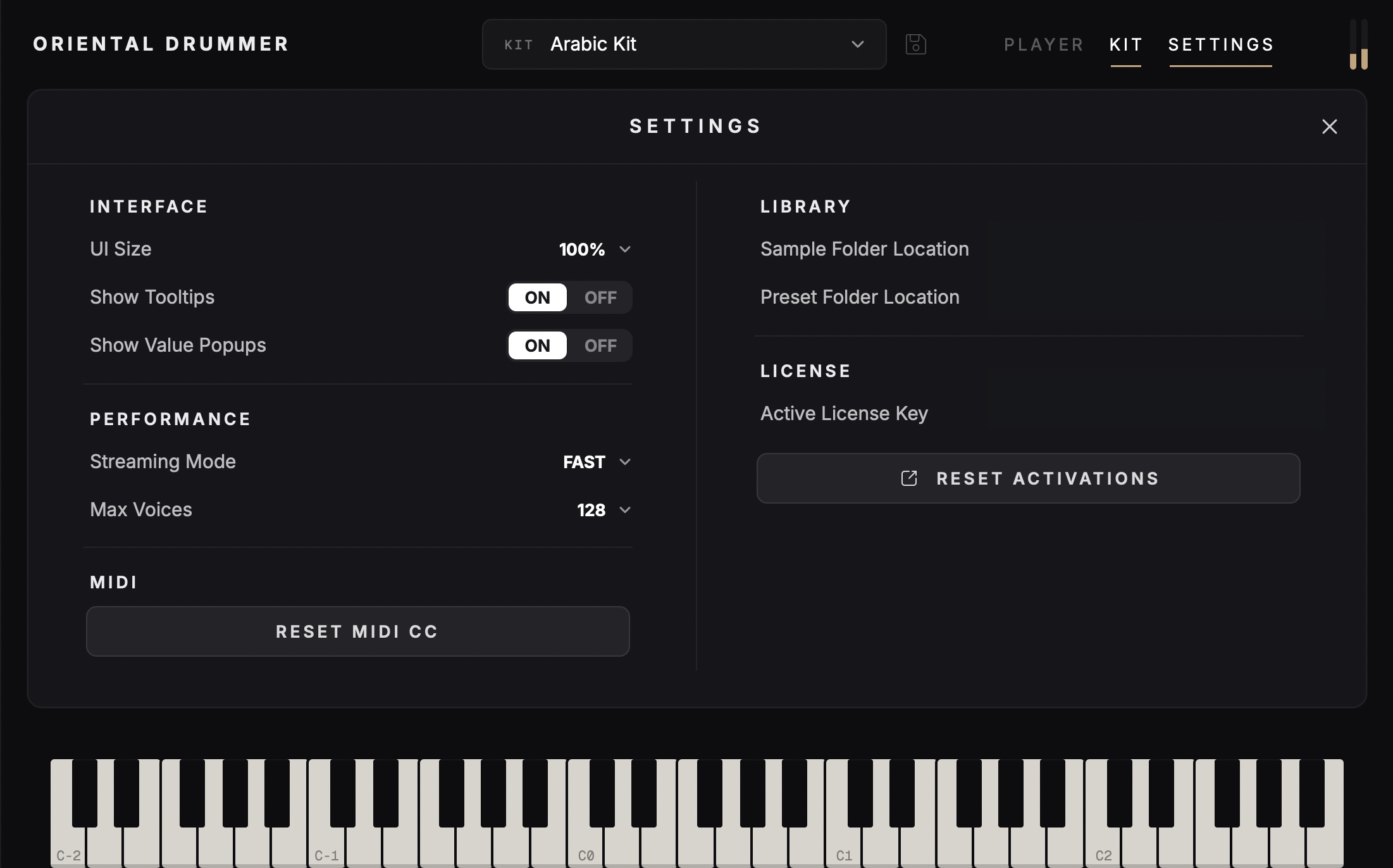
The Settings View provides access to the main configuration options and product information for the plugin.
From this page, you can adjust interface preferences, performance behavior, MIDI settings, library locations, and license details.
Interface Section
The Interface section lets you customize the plugin’s display and visual behavior.
Use the UI Size setting to scale the plugin interface to fit your screen and workflow. Available size options include 25%, 50%, 75%, 100%, 125%, 150%, 175%, and 200%.
You can also enable or disable Tooltips. When enabled, helpful descriptions appear when hovering over controls, making it easier to understand what each setting does.
The Value Popups option controls whether parameter values are shown while adjusting knobs, sliders, or other controls. Enable this option to see precise values as you make changes, or disable it for a cleaner interface experience.
Performance Section
The Performance section lets you adjust how the plugin uses system resources during playback.
The Streaming Mode setting controls how quickly sample content is streamed from your system. You can adjust the streaming behavior from Fast to Slow depending on your computer’s performance and storage speed. Faster settings may provide quicker playback response, while slower settings may help improve stability on some systems.
You can also set the maximum number of voices used by the plugin. Available voice options include 32, 64, 128, and 256 voices. Higher voice counts allow more samples to play at the same time, while lower voice counts can reduce CPU and memory usage.
MIDI Section
The MIDI section provides controls for managing MIDI CC mapping inside the plugin.
Use the Reset MIDI CC Mapping option to clear all existing MIDI CC assignments and return the MIDI control mapping to its default state.
To map a knob or control to a MIDI CC, right-click the control you want to assign. From the menu, select Learn MIDI CC to move a hardware control and automatically assign it, or select Assign MIDI CC to manually choose a specific MIDI CC number.
MIDI CC mapping allows you to control plugin parameters from an external MIDI controller, making it easier to adjust settings in real time during playback or performance.
Library Section
The Library section displays the folder locations used by the plugin for its installed content and presets.
The Sample Folder Location shows where the plugin’s sample content is stored on your computer. This can be useful when checking your installation or confirming that the sample library is in the correct location.
The Preset Folder Location shows where user presets and plugin preset data are stored. Use this information when managing, backing up, or locating your saved presets.
License Section
The License section displays the active license currently being used by the plugin. This allows you to confirm which license key is activated on your system.
You can also reset the activations for your license key from this section. This is useful if you need to move your license to another computer or clear previous activations before activating the plugin again.
Contact Us
Need help with Oriental Drummer?
If you have any questions about installation, activation, compatibility, MIDI styles, plugin formats, or anything else related to Oriental Drummer, we’re here to help. Please use the support form below and our team will get back to you as soon as possible.